
Discord offers a great space for chat and discussion, and Albion’s Delights has been open since January of 2023! It’s a space to talk about my books, but also so many other topics of interest like history, crafting, food, pets, and other books and media we’re enjoying.
This page explains a bit more about what Discord is and the specifics of my Discord space. You can access Discord via a desktop app, mobile apps, or a web browser (and it’s free unless you want some additional benefits).
How to get access to my Discord
You’ll need an invitation link (it’s a private server).
There are two ways to get an invite link. You can get an invitation from any email newsletter I’ve sent since the beginning of January 2023 (for free, the link is right above the header image), or by becoming a Patron of my Patreon. (Learn more about my Patreon.)
But you can also get a link by replying to any newsletter email (it’ll come straight to my inbox), messaging me on Patreon, or sending me a note through the contact form here on my website.
You can continue to hang out with us on Discord whether or not you stay with the newsletter or Patreon. They’re just the easiest way to manage a limited-access link.
The basics of Discord
A given Discord server (or space) can have a range of channels. These all start with a #, like #books-and-media. You’ll need to connect to the Discord and agree to the rules (in #welcome-and-rules, more info below) before you can see most of the channels. We’ve got four groups of channels.
- Admin and intros has channels about rules, announcements, and introductions.
- Albion has channels for each of the series, plus extras and a space for reporting typos.
- Space to chat has our general conversation spaces, the core of where we hang out and talk about books and media, historical topics, flora and fauna (the spot for all the pet pics), food and crafts, and ‘why are bodies’ for all the days when you wonder why embodiment seemed like a good idea. #quoted-out-of-context is for little snippets of the current writing. No spoilers, only amusement.
- Celia’s Not Reading has a set of channels I’m not reading, space to discuss without authorial commentary. (Note that while I encourage fanfic, please don’t post links to it anywhere in the Discord. More info in the rules.)
- News and information has links to releases and extras, events, and other online spaces.
Channels can also have threads, great for messages about a specific topic. For new releases, I set up threads where people don’t use spoiler code and where they do. Threads disappear from the interface after a period of time (a week, for us), but I pin and link them to the top of the relevant channels to make them easier to find again later.
How to connect
You can access Discord via a web browser or a separate app (for Mac, Windows, Linux, iOS, and Android). Once you’re logged in, you can move seamlessly between different devices. Need accessibility info? There’s more information in the tips at the end of this post.
First you’ll need to set up an account for Discord in general. Note that while you can change the display name in the server, your user account name will display when people look at your profile, tag you, or do various other actions.
Here’s Discord’s help information for setting up an account.
Once you’ve got a Discord account, you can add information to your profile and a profile image (it’s absolutely fine to use a nickname or something that’s not your legal name).
How the Albion’s Delights Discord is set up
When you first join Albion’s Delights, you’ll be in a channel or area called #welcome-and-rules. Here, you’ll see text explaining the rules of the space (you can read them below, too.) You’ll need to agree to them by clicking on an emoji to tell our friendly bot to let you see the rest of the channels. The most recent version of the rules will be in this channel, and you can click on the thumbtack to see the pinned threads.
(Why? Because I want to make sure everyone knows about the accessibility info and how we handle spoilers in this space, mostly.)
What to do:
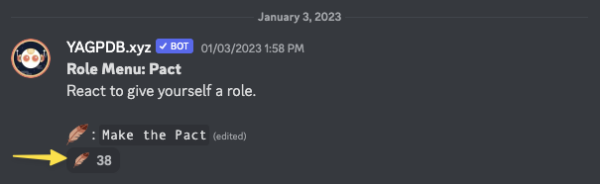
- Scroll down to the bottom of the #welcome-and-rules channel (there’s only two messages).
- Click the quill emoji with the number next to it to signal your agreement.
- The image below has a yellow arrow pointing to the place to click.
- (The number will be different, it’s the number of people who’ve agreed so far.)
Discord allows you to have tools that let you easily identify some things. Our friendly bot will let you pick some roles for yourself. The roles currently are all optional (other than “Made the Pact”) and include:
- Made the Pact : You’ve agreed to the Discord’s rules and can see all of the channels.
- Pronouns: Select the ones you want to use in this space in #optional-self-description. (If we don’t have yours, we’re glad to add more options.) You’re also welcome to edit your display name to include them if you’d like.
- Location : Optional, by continent. As it says, “Antarctica is here to be funny and private” – feel free to choose that if you’d rather keep your location to yourself.
- Native or preferred language: The list is drawn from my sales location information. We’re glad to add more languages, just let us know!
- Just for fun: If you were in Albion, where did you get your education? Choose from the Schola Houses, the others of the Five Schools, or apprenticeship. Entirely optional.
- You can see what roles someone has selected by clicking on their name and pulling up their profile.
Need more help getting set up? Keep reading (below the next section on the rules) for tips and resources.
You can use @admin to ping (alert) the admins for the server. You’ll also find us listed under the roles at the top. Please use this if there’s something that needs attention in the server.
Discord help
Here are some tips and tricks you might want to know if you’re new to Discord.
You can choose default settings for the app, or individual settings for servers or sometimes individual channels. If something isn’t working the way you expect, try checking both places.
You can find your general user settings via your profile at the bottom of the channels list (desktop and app) with your user picture and, microphone, headphones, and cogwheel icons. On the app, try tapping on your user picture.
Show the member list: You can choose to display or see this by tapping or clicking on the icon of a couple of head-and-shoulders silhouettes in the top right.
Change your display name or profile: Right click on your own name in the server member list, then the pencil icon, and you can edit your display name and about me. You can also change your information across all servers through the user settings (cogwheel down at the bottom with your username, audio/etc. connections.)
Accessibility: You can choose a range of accessibility options in the Accessibility menu (under “App Settings”), including turning of moving GIFs and images.
Here’s Discord’s page explaining accessibility tools and settings in detail. It works well with a number of screenreader tools.
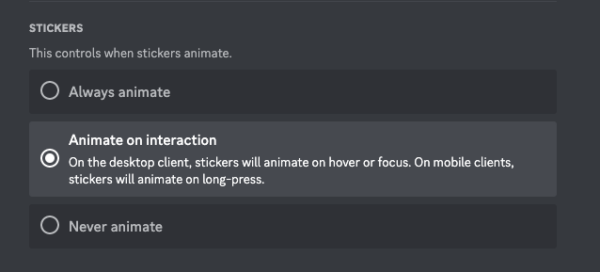
I generally avoid moving gifs and stickers on the server (because they’re hard on migraines) but you can also turn them off for yourself anywhere on Discord, or set them so they only move when you hover over them. In that accessibility section of your settings, here’s what that looks like:
Adjust your notifications: Go into User Settings (cogwheel or user profile pic at the bottom, usually), scroll down the list to “Notifications” (under “App Settings”) for general settings. For server specific settings, click on the server name (Albion’s Delights) at the top of the list of channels, select “Notification Settings”.
Don’t want to get notified about something in a specific channel? Mute the channel for as long as you like – a few minutes or until you turn it back on. You can still go to that channel and read them, you just won’t get any notifications of new messages.